
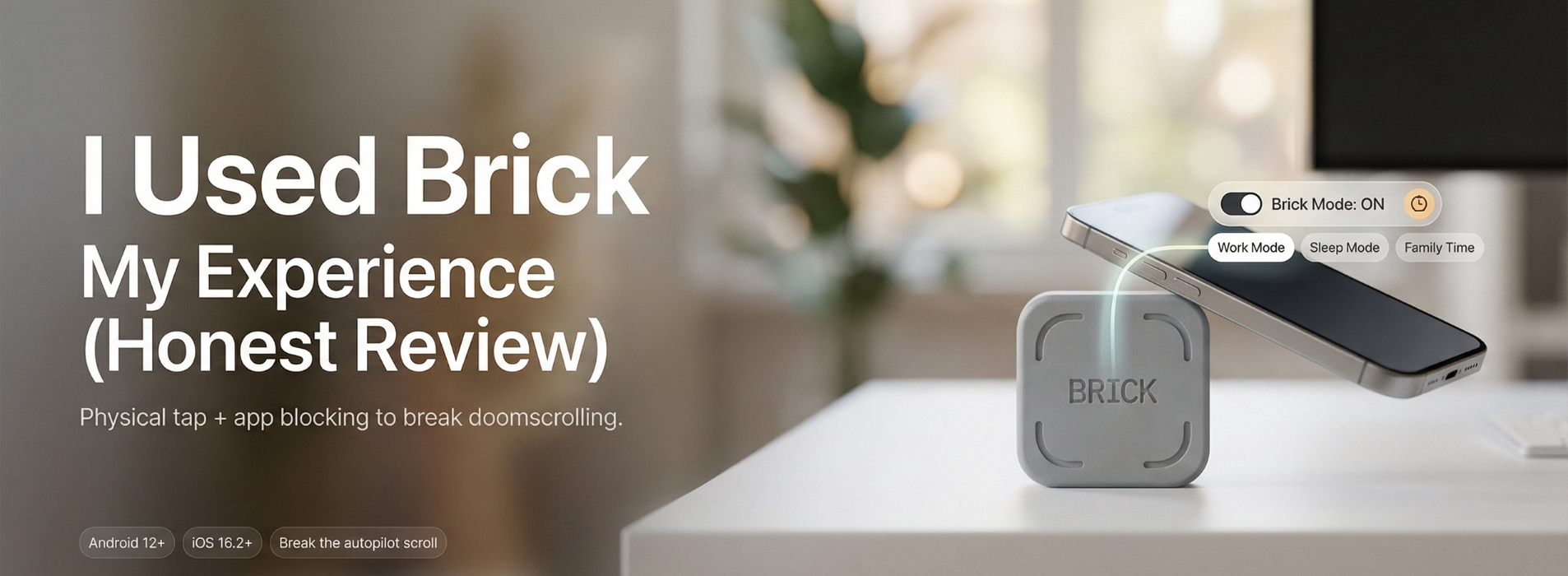
I used Brick personally, and it helped me stay focused. The biggest benefit is simple: it controls distractions. The only small adjustment is getting used to quick access when you really need an app.
Quick verdict
If you want to break the “2 minutes of scrolling turns into 45 minutes” loop, Brick feels genuinely effective. The physical tap + app blocking works because you must walk back to the Brick to unblock apps. That extra step makes you pause and choose intentionally.
What is Brick?
Brick is a physical device + mobile app. It temporarily blocks (or removes access to) the distracting apps you choose plus their notifications so your phone stays a tool, not a toy.
How Brick works (simple flow)
- Choose apps: Pick which apps/websites you want to block or choose the few apps you want to keep and block the rest.
- Create modes: Set up custom modes like Work, Study, or Family Time.
- Tap to Brick: Pick a mode, tap your phone on the Brick, and Brick Mode turns on (timer starts).
- Put Brick out of reach: This is the “magic.” You must physically go back to the Brick to unblock, which breaks autopilot.
- Tap to Unbrick: Tap again when you want normal access.
Extra helpful: If the Brick is not nearby, you can still turn Brick Mode on from the app by pressing and holding a button (remote “brick”).
How I used it in real life
I did not keep Brick on my desk. I placed it in a drawer, on a shelf, or even in another room. When I felt the urge to scroll, I could not unlock on autopilot. I had to stand up and go get the Brick. That moment alone helped me stop and rethink.
My 3 go-to modes (copy these and tweak)
- Work Mode: Blocks social, short-video apps, and random shopping/browsing apps
- Sleep Mode: Blocks social + email, keeps only essentials
- Deep Time / Family Time: Blocks the apps that kill presence and attention
These “different times of day” modes match how Brick is meant to be used.
What I liked most
- Simple setup: Choose a mode → tap → done
- Physical friction: It’s not just another app blocker—the device makes the choice intentional
- Multiple modes: Separate setups for work, study, and family time
- Emergency backup: If you urgently need access and Brick isn’t available, you can use Emergency Unbricks
Small note (without making it a big negative)
At the start, you need to build the habit: choose what to block and decide where to keep the Brick. After that, it feels natural.
Compatibility + blocking limits (important)
Brick works with:
- Android 12+
- iOS 16.2+
Some system-level parts (like phone/launcher essentials) can’t be blocked. That’s normal for device safety.
What are Emergency Unbricks?
Brick includes 5 Emergency Unbricks. They are meant for real situations (you misplaced Brick, you’re away from home), not for daily “just this once” bypassing.
Price & value (simple take)
Brick is listed at $59 on the brand’s site (confirm the current price at checkout). It feels most worth it if you regularly ignore Screen Time / Digital Wellbeing limits. The physical step helps stop the “skip” habit.
For international readers (shipping/taxes)
If you are outside the US, you may pay import duties/taxes. The brand’s policy mentions that many countries show prepaid fees at checkout; otherwise, fees may apply on delivery depending on your country.
FAQs
Do I always need the physical device to use Brick?
The physical device is the core of the system for unbricking. That’s what creates friction. You can still turn Brick Mode on remotely from the app.
How many modes can I create?
Brick supports multiple custom modes. The FAQ mentions up to 10 modes.
Final verdict
Brick made my phone feel less like “default entertainment” and more like an intentional tool. If distracting apps keep stealing your focus, Brick is a practical and simple option that can actually help.